A macOS-inspired desktop.
The power of Kali Linux.
Transform your GNOME desktop on Kali Linux with modular appearance customization, an interactive terminal wizard, and compatibility-aware GNOME extension management.
~15-30s Full Install•~2s Cursors Only•100% Rootless & Safe•~1s Instant Rollback
macKali decouples visual styling from system packages, giving you complete macOS elegance without modifying Kali penetration testing tools or core services.
Refined Desktop Appearance
Experience seamless Light and Dark mode transitions with bundled 4K Day/Night abstract wallpapers, genuine WhiteSur vector cursor sets, left-aligned window traffic lights, and Libadwaita color scheme integration.
Transform Dash to Dock into a centered, bottom-floating dock with intelligent autohide, 48px icons, and running indicators—while strictly preserving all your pinned Kali security tools and favorite application launchers.
Centered bottom layout with autohide
Strict favorite apps & Kali launcher preservation
Dynamic Extension Engine
Evaluates extensions dynamically against your running GNOME version without hardcoded maximums. Conservative handling ensures untested or unknown versions are never forced.
4-Tier compatibility classification
Verified EGO package artifact downloads
Interactive Terminal Wizard (Phase 4A)
The dedicated terminal UI adapts automatically to whiptail, dialog, or clean ANSI text mode. It performs system detection, explains compatibility per extension, offers granular component toggles, and requires explicit user confirmation before applying any changes.
Safe dry-run mode and clean cancellation at any point
Zero sudo requirement for user customizations
Visual Showcase
Genuine Repository Assets
Explore the authentic high-resolution wallpapers, cursor themes, and layout presets packaged directly within the macKali project.
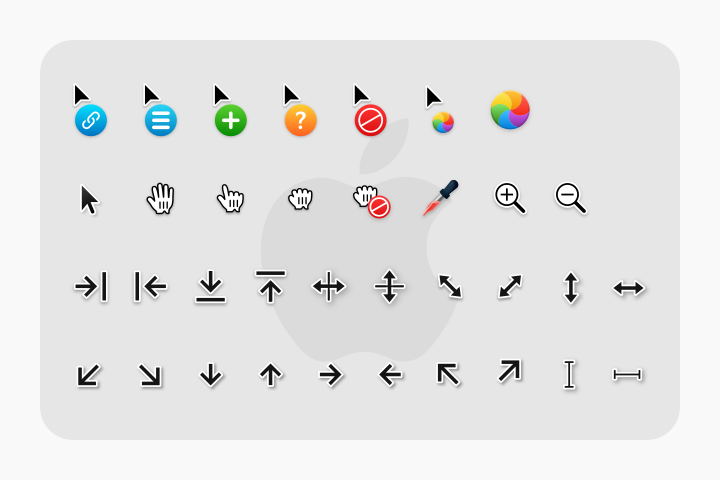
Pixel-crisp macOS cursor themes rendered from scalable SVGs. Includes light and dark variants, smooth busy spinners, text selectors, and precision crosshairs designed for high-resolution displays.
Installed to: ~/.local/share/icons/WhiteSur-cursors
Structured Tiers
Choose Your Installation Preset
macKali defines three structured tiers tailored to performance, daily workflow, and visual nostalgia. Presets are loaded dynamically from repository manifests.
Minimal
Clean, lightweight macOS layout with minimal resource footprint for everyday efficiency.
WhiteSur Cursor Theme
macOS Traffic Light Buttons (Left)
Dash to Dock Bottom Centered Layout
Dual 4K Dynamic Wallpapers
./install.sh --preset minimal
Recommended
Balanced
The quintessential macOS desktop experience with frosted glass blur and smooth animations.
All Minimal Components Included
Blur My Shell Frosted Glass Styling
Magic Lamp Genie Minimize (Opt-in)
Full Safety Backup by Default
./install.sh --preset balanced
Full
The complete effects suite with classic Compiz physics and experimental 3D transitions.
All Balanced Components Included
Compiz Wobbly Windows (Opt-in)
Desktop Cube 3D Switcher (Experimental)
Targeted at Dedicated 3D Acceleration
./install.sh --preset full
Dynamic Compatibility
Built for Kali Linux Rolling
macKali does not treat GNOME 50 as a hard ceiling. It evaluates each component independently and adheres to strict safety boundaries.
Extension / Component
Classification
Tested Baseline
Safety Behavior
Universal Components (Wallpapers, Cursors, GTK)
Verified Compatible
GNOME 45 – Future Releases
Universal user-space assets; never blocked by GNOME version checks.
Dash to Dock (Bottom macOS dock)
Verified Compatible
Tested: GNOME 50.3 • Dynamic Forward Check
Preserves favorite apps; reverts cleanly via --dock-revert.
Blur My Shell (Frosted glass panel/overview)
Verified Compatible
Tested: GNOME 50.3 • Dynamic Forward Check
Lightweight pipeline; preserves terminal contrast and readability.
Compiz Magic Lamp (Genie minimize animation)
Verified Compatible
Tested: GNOME 50.3 • Dynamic Forward Check
Opt-in only; skipped automatically if compatibility is unverified.
Compiz Windows Effect (Wobbly physics)
Verified Compatible
Tested: GNOME 50.3 • Dynamic Forward Check
Opt-in only; independent disable toggle provided.
Desktop Cube (3D workspace transitions)
Experimental Opt-In
Tested: GNOME 50.3 • Dynamic Forward Check
Explicit user consent required; never enabled by default.
Installation
Install macKali in Seconds
Choose Automatic (Guided Terminal Wizard) or Manual (Step-by-Step Package Control). Completely rootless, non-destructive, and reversible anytime.
Runs with a single command. The wizard automatically detects your environment, checks for new releases on GitHub, creates a timestamped safety backup, and guides you through preset choices in ~15 to 30 seconds:
git clone https://github.com/realmadede/macKali.git && cd macKali && ./install.sh --interactive
Official verified standalone packages and SHA-256 checksum manifests are now available on GitHub Releases (v1.0.0). You can install either via the quick Git clone interactive wizard (Method A) or by downloading the cryptographically verified standalone release archive (Method B):
Method C: Test Drive Before Installing (Zero-Touch Dry-Run & Sandbox)
Want to inspect everything macKali does before touching your desktop? Run a 100% read-only simulation—or test live in a secondary Linux user account or VM snapshot without affecting your primary workspace:
Because macKali is 100% user-scoped (no sudo), you can also test a live install inside a secondary Linux user account or VM snapshot while keeping your main account untouched.
STEP 01
Environment Check
The wizard detects your Linux distribution, GNOME version, and Wayland/X11 session.
STEP 02
Choose Preset
Select Minimal, Balanced, or Full, and toggle individual visual components.
STEP 03
Safety Review
Inspect the compatibility report and create a timestamped configuration backup.
STEP 04
Clean Rollback
Cancel cleanly at any time, or restore anytime with single-command rollback.
Emergency recovery: Run ./scripts/restore.sh or switch to TTY (Ctrl+Alt+F3).
While GTK 4, Libadwaita, and GTK 3 applications display circular traffic lights automatically, browsers, Electron suites, and Qt apps require one-time toggles to adopt native system window controls.
Google Chrome, Brave & Chromium
Chromium-based browsers draw custom titlebars by default with their own window buttons. To enable native macOS traffic lights:
Method 1: Right-click an empty space in the top tab strip (beside the + button) and check “Use system title bar and borders”.
Method 2: Go to Settings → Appearance and toggle on “Use system title bar and borders”.
Result: Traffic lights immediately move to the top-left in authentic macOS Red, Yellow, and Green circles.
Mozilla Firefox & LibreWolf
Firefox can be switched from internal CSD tab drawing to full native GTK titlebars in three clicks:
Step 1: Right-click any blank area of the navigation or tab bar and select “Customize Toolbar…”.
Step 2: In the bottom-left corner of the customization screen, check the “Title Bar” checkbox.
Step 3: Click “Done” to apply. Firefox will now use the native system header with top-left circular controls.
VS Code, VSCodium & Cursor
Modern code editors render an Electron custom titlebar by default. Switching to native window styling restores system controls:
Step 1: Open Settings with Ctrl + , (or File → Preferences → Settings).
Step 2: Search for window.titleBarStyle in the search bar.
Step 3: Change the value from custom to native. Restart or reload the editor window to enjoy authentic window controls.
Discord, Slack, Obsidian & Electron
Electron applications offer native window options or Wayland ozone platform flags for clean window integration:
In-App Setting: Look under Appearance or Window settings and switch the title bar style to Native.
Wayland Native Launch: Start the app with --enable-features=UseOzonePlatform --ozone-platform=wayland for native compositor integration.
Frameless Window Toggle: In Obsidian, switch Window frame style to Native (under Appearance → Window).
Sandboxed Flatpak & Snap Applications
Containerized applications are sandboxed from reading host desktop configurations by default. Grant theming permissions with:
Flatpak Theming: Run flatpak override --user --filesystem=xdg-config/gtk-4.0:ro to grant GTK and traffic lights stylesheet access.
Snap Theming: Connect the theme slot with sudo snap connect <app>:gtk-3-themes whitesur-gtk-theme.
GUI Management: In Flatseal, select any app and toggle on Filesystem → User Configuration read access.
Qt 5 & Qt 6 Applications (Wireshark, VirtualBox)
Qt applications leverage the Kvantum engine for macOS widgets while aligning buttons to the top-left:
Interior Widget Theming: Run ./scripts/providers/qt-provider.sh --install to style buttons, tabs, tables, and dialogs.
Server-Side Decorations: Launch via QT_QPA_PLATFORM=xcb <app> to route titlebars through Mutter on Xwayland.
Questions & Answers
Frequently Asked Questions
Everything you need to know about safety, rolling updates, security tools, and rollback mechanisms.
No. macKali is strictly a user-space desktop appearance suite. It never alters system packages, APT repositories, network services, penetration testing utilities, security daemons, or /etc. All changes reside inside your home directory (~/.local/share, ~/.config) and user dconf keys.
You can evaluate macKali with zero risk in four progressive ways: (1) Read-Only Dry-Run & Check: Run ./install.sh --check or ./install.sh --interactive --dry-run to inspect compatibility and every planned action without modifying a single file or setting; (2) Temporary Sandbox: Run ./tests/run-tests.sh to verify all 69 automated checks in an isolated /tmp directory; (3) Secondary Linux User Account: Because macKali is 100% rootless and user-scoped, testing it in a separate Linux user account leaves your primary account completely untouched; or (4) Virtual Machine Snapshot: Take a snapshot in VirtualBox/VMware, test the full preset, and revert in one click.
macKali is architected for rolling distributions. It never pins packages or blocks GNOME updates. When your system updates, running ./install.sh --recheck re-evaluates extension compatibility against the new GNOME version and official GNOME Extensions metadata, gracefully skipping unsupported extensions without breaking your themes or wallpapers.
No. The interactive installer and customization scripts run entirely rootless as a standard user. You do not need sudo to install cursors, wallpapers, themes, or extensions. If optional utilities like curl or unzip are missing, macKali detects them and explains how to install them rather than escalating privileges automatically.
While engineered and optimized for Kali Linux, macKali is built entirely on POSIX shell standards, FreeDesktop specifications (~/.config, ~/.local/share), and standard GSettings/dconf schemas. Because it avoids distro-locked binaries, it works cleanly across Debian (12 Bookworm, 13 Trixie, Testing, Sid), Ubuntu (22.04, 24.04, 24.10), Fedora Workstation (39 to 42+), Arch Linux / Manjaro, and Pop!_OS. On desktop environments: GNOME Shell (42 to 50+) offers the full experience; XFCE is supported via built-in xfwm4 fallback hooks; and KDE/Cinnamon receive cursor, wallpaper, and GTK application theming.
By default, macKali installs the top-left circular traffic lights for all GTK3 and GTK4/Libadwaita applications, isolated hover glow, WhiteSur HiDPI cursors, rootless user safety, and automated backup snapshots. Optional settings and presets (--preset minimal|balanced|full, --mode dark|light, --extensions, --wallpaper) let you opt in to the centered floating bottom dock, dual 4K day/night wallpapers, 3D window effects (Magic Lamp, Wobbly Windows), and standalone modular providers.
This is due to the architectural division between interior widget styling and window decorations on Wayland. The Qt Provider (qt-provider.sh) configures the Kvantum (QStyle) engine, which styles all interior controls (menus, buttons, tabs, tables, packet lists) in WhiteSur macOS style. On GNOME Wayland, however, the window manager does not provide server-side window frames; Qt 6 uses its internal Wayland decoration client with hardcoded monochrome icons (_, □, ✗). macKali guarantees the buttons are on the top-left in macOS order (close,minimize,maximize:). If server-side decorations are desired, launching via Xwayland (QT_QPA_PLATFORM=xcb wireshark) routes window framing to Mutter.
GNOME Shell retired the global application menu infrastructure in GNOME 40+. Third-party global menu extensions are notoriously fragile and frequently break across GNOME point updates. macKali prioritizes system stability and security tool availability: keeping Kali's native top panel ensures your network monitors, VPN controls, workspace switchers, and Kali security menus remain rock-solid and accessible.
No. macKali strictly touches desktop styling (GTK stylesheets, cursor sets, wallpaper keys, and dock settings). It never modifies ~/.zshrc, ~/.bashrc, shell aliases, environment paths, custom scripts, or security tool configurations.
Before applying any modifications, macKali automatically creates an isolated backup in ~/.config/mackali/backups/. You can restore your previous appearance anytime with ./scripts/restore.sh, or run ./scripts/uninstall.sh --purge to remove all macKali assets and configurations cleanly without affecting your personal files.
Yes. Wallpapers, GTK themes, WhiteSur cursors, and Dash to Dock function identically on both Wayland and X11 sessions. Optional 3D desktop effects (such as Compiz Windows Effect or Desktop Cube) require compatible compositing and are guarded by explicit opt-in checks.
macKali is designed for near-instant installation without bloated compile cycles. Installing only the WhiteSur cursors takes approximately 2 seconds. Running the complete interactive wizard with the recommended Balanced preset takes 15 to 30 seconds (including wallpapers, dock styling, and verified extension bundle fetching). If extension archives are already cached, applying the complete desktop environment takes under 3 seconds. Single-command rollback to original defaults takes 1 second.
macKali features an automated in-app release update checker. Every time you run the installer or customization wizard, macKali performs an unobtrusive 2-second check against the official GitHub Releases API. If a newer release or security patch is available, an alert banner is displayed with instant upgrade instructions. You can also run ./install.sh --check-update at any time. When Kali Linux upgrades GNOME, running ./install.sh --recheck re-evaluates extension compatibility dynamically without reinstalling your wallpapers or themes.
Yes, macKali runs completely inside VirtualBox, VMware, and QEMU/KVM. For the smoothest experience, enable 3D Acceleration in VirtualBox VM settings (allocate 128MB or 256MB VRAM) and install guest integration (sudo apt install -y virtualbox-guest-x11). The recommended preset for virtual machines is Balanced (or Minimal for 2GB–4GB RAM VMs). In addition, if you run the VirtualBox manager application inside macKali, the Qt Provider (qt-provider.sh) themes its interface and dialogs with the WhiteSur macOS look.
macKali contains zero telemetry, zero tracking, zero background daemons, and zero credential scrapers. It runs rootless in user space. During installation, it performs a 2-second check against the official GitHub Releases API (disable with --no-update-check for air-gapped environments). It sets user configuration files (~/.config/gtk-4.0/gtk.css, ~/.config/environment.d/10-mackali-qt.conf) and applies standard GSettings D-Bus window layouts. It never touches shell configs (~/.zshrc), Metasploit, Wireshark packet engines, proxies, or network interfaces.
Documentation
Comprehensive Guides & Specs
Read complete technical documentation, architecture blueprints, and recovery instructions directly in the repository.